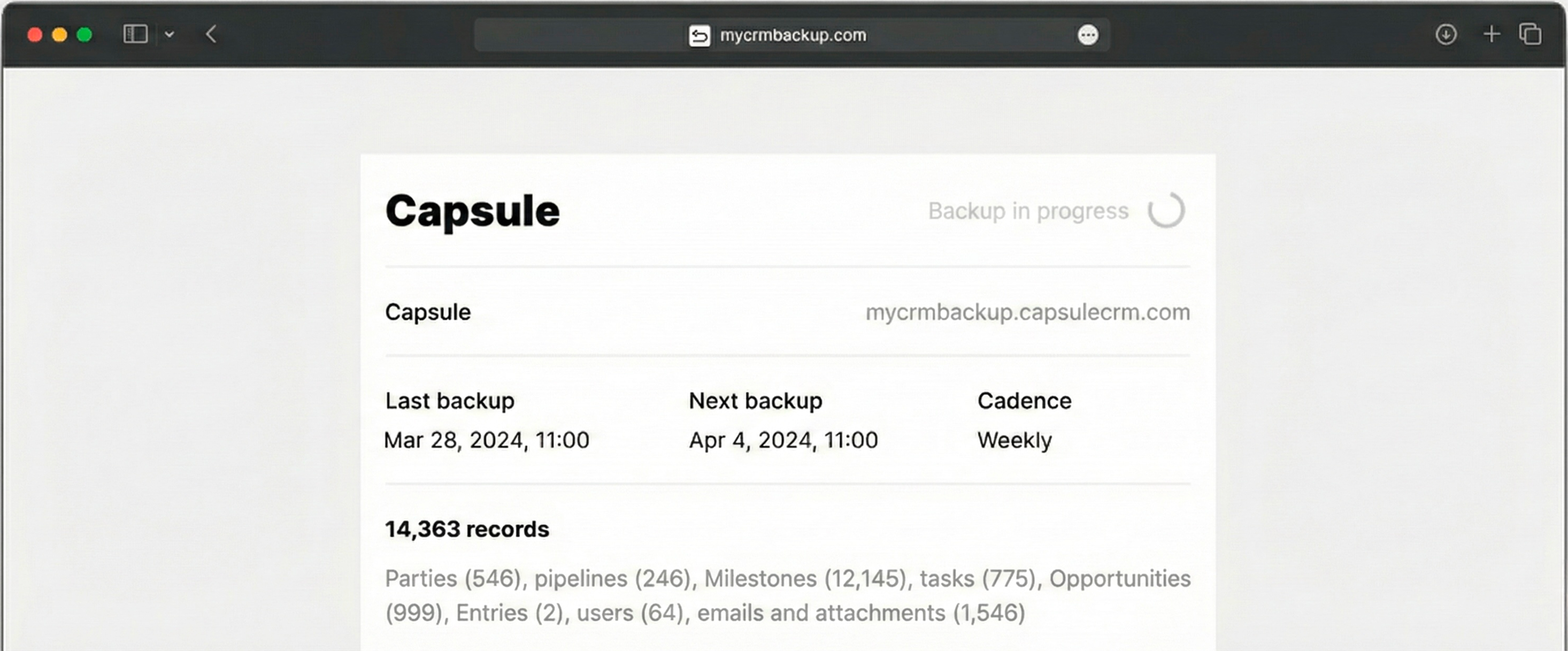
A bad import, a bulk edit, or a misconfigured automation can overwrite fields, delete data, or create a mess in your Capsule CRM account. Your backup gives you a way back to normal.
Have Your Own Copy, Always
Capsule CRM is not a backup tool. Keep a full copy of your CRM data in your own cloud storage, where you control access.
Use Capsule CRM Data Beyond CRM
Your backups aren’t just for emergencies. Use them to feed BI tools and AI — analyze deal flow, summarize interactions, or find patterns in your pipeline over time.
How Capsule CRM Backup Works
1. Connect Capsule CRM
Authorize MyCRMBackup to read data from your Capsule CRM account via API.
2. Choose Your Storage
Point the backup to your own cloud storage account, so all files land in a folder you control.
3. Set the Schedule and start
Pick how often you want to back up Capsule CRM — daily or weekly. Run your backup
Spot the Difference
MyCRMBackup for Capsule CRM
▪︎
Runs on a schedule you set — no manual exports, no reminders.
▪︎
Captures the full picture: deals, contacts, organizations, activities, emails, notes, custom fields, attachments, and more.
▪︎
Stores everything directly in your own cloud storage for long-term retention and compliance.
Manual Capsule CRM Export
▪︎
Let’s be honest. You will never remember to run it.
▪︎
Requires repeating the same export steps manually every time.
▪︎
Often misses key data like emails, attachments, and custom fields.